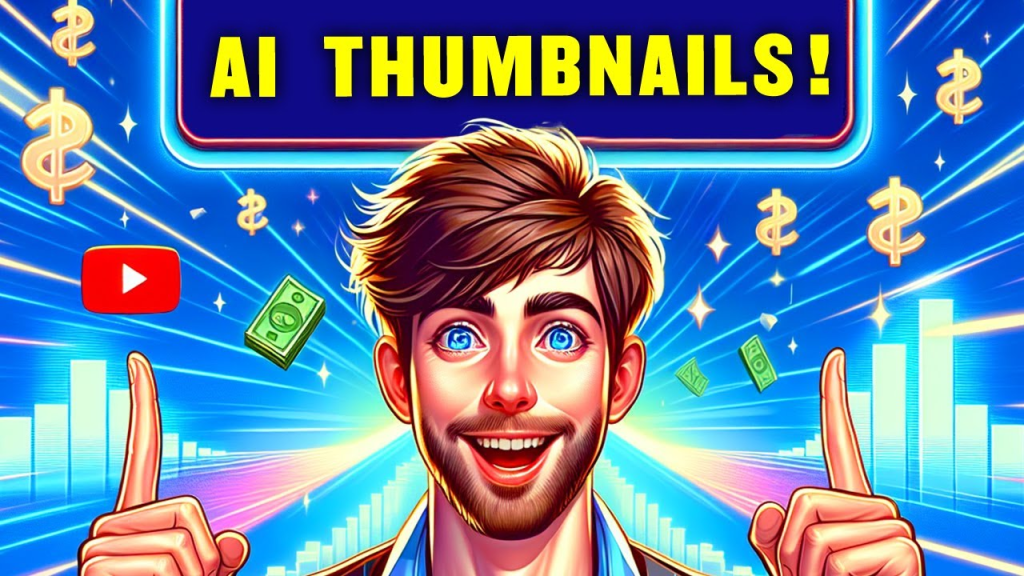
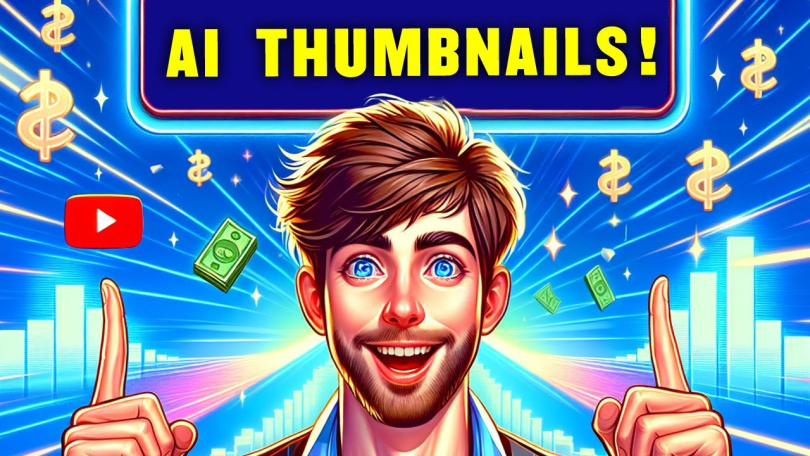

A great thumbnail can make or break your YouTube video. Studies and creator experience alike show that thumbnails are often the single biggest factor in whether someone clicks on your video or scrolls past it. The good news? You don’t need expensive software or professional design skills anymore. Thanks to AI-powered tools, anyone can create scroll-stopping, click-worthy thumbnails for free.
In this guide, we’ll walk you through exactly how to make YouTube thumbnails using AI, step by step, without spending a single rupee or dollar. This comprehensive guide will equip you with all the knowledge you need about How to Make YouTube Thumbnails.
Why AI Thumbnails Are a Game-Changer for Creators
Before AI tools became mainstream, creating a professional thumbnail meant either:
- Hiring a graphic designer (expensive and slow)
- Learning Photoshop or Canva from scratch (time-consuming)
- Using boring templates that look like everyone else’s
AI thumbnail generators solve all three problems. They let you:
- Generate custom backgrounds, characters, or scenes in seconds
- Remove backgrounds and enhance images automatically
- Add eye-catching text and effects with smart suggestions
- Create multiple thumbnail variations to A/B test
Best Free AI Tools to Create YouTube Thumbnails
Here are the most reliable free tools creators are using right now:
1. Canva (AI Features)
Canva’s free plan includes AI-powered tools like Magic Media (text-to-image), Background Remover, and Magic Resize. It also has ready-made YouTube thumbnail templates (1280×720 px) that you can customize in minutes.
2. Adobe Express
Adobe Express offers a free AI image generator and text effects specifically useful for bold, YouTube-style thumbnail text.
3. Fotor
Fotor has a dedicated AI thumbnail maker with templates designed for YouTube, along with free background removal and AI photo enhancement.
4. Microsoft Designer
Powered by AI image generation, Microsoft Designer lets you type a prompt and instantly get thumbnail-ready designs, completely free with a Microsoft account.
5. Pixlr
Pixlr’s free AI tools include background remover and AI image expander, both handy for turning a simple photo into a polished thumbnail.
Step-by-Step: How to Create a YouTube Thumbnail Using AI
Step 1: Choose Your Tool
Pick any free AI tool from the list above. Canva is recommended for beginners because it combines AI generation with easy drag-and-drop editing.
Step 2: Select the Right Size
YouTube thumbnails should be 1280 x 720 pixels (16:9 ratio). Most AI tools have a YouTube thumbnail template built in, so you don’t have to set this manually.
Step 3: Generate or Upload a Base Image
- If you want a fully AI-generated scene, type a descriptive prompt (e.g., “a shocked man pointing at a laptop screen, vibrant colors, YouTube thumbnail style”)
- If you have your own photo or screenshot, upload it and use the AI background remover to isolate the subject
Step 4: Enhance and Clean Up
Use AI tools to:
- Sharpen or upscale low-quality images
- Remove unwanted backgrounds
- Adjust lighting and colors automatically
Step 5: Add Bold, Readable Text
Keep text short (3-5 words max), use bold fonts, and add a contrasting color or outline so it’s readable even on small screens. Many AI tools now suggest font pairings and colors automatically based on your image.
Step 6: Add Emotion and Contrast
High-performing thumbnails usually include:
- A human face showing strong emotion (shock, excitement, curiosity)
- Bright, contrasting colors that stand out in the feed
- Arrows, circles, or highlights pointing to the key element
Step 7: Download and Test
Export your thumbnail in high resolution (JPG or PNG) and upload it to YouTube Studio. If possible, create 2-3 variations and use YouTube’s thumbnail A/B testing feature to see which performs best.
Tips for Better AI-Generated Thumbnails
- Keep it simple: Don’t overcrowd the thumbnail with too much text or too many elements.
- Be consistent: Use similar fonts, colors, or styles across your channel so viewers instantly recognize your videos.
- Match the content: Never use misleading thumbnails (clickbait that doesn’t match the video) — it hurts watch time and channel trust.
- Study top creators: Look at thumbnails from successful channels in your niche for inspiration on colors and layout.
Final Thoughts
Creating professional YouTube thumbnails no longer requires design experience or a paid subscription. With free AI tools like Canva, Adobe Express, Fotor, Microsoft Designer, and Pixlr, any creator can design scroll-stopping thumbnails in minutes. Start experimenting with different prompts, styles, and layouts, and track which thumbnails get the most clicks — over time, you’ll develop a signature style that boosts your channel’s click-through rate for free.
For more tips, tools, and step-by-step guides on growing your YouTube channel and using AI to create better content, visit our website for more helpful articles.